

In addition to my regular (giant) posts, I’m starting a series of small Unity-Tips on the site as well. Today’s is on using the Preview node in Unity’s shader graph to organize and clarify your graphs.
Graphs with a jumbled mess of wires are hard to decipher. It’s distracting trying to understand a small section when random wires are passing over it. It’s also hard to work out exactly what a wire is if the source and destination are far apart.
If you have any issues, ping me on Twitter, or ask on the forums.
This article may contain affiliate links, mistakes, or bad puns. Please read the disclaimer for more information.
Wire Cleanup
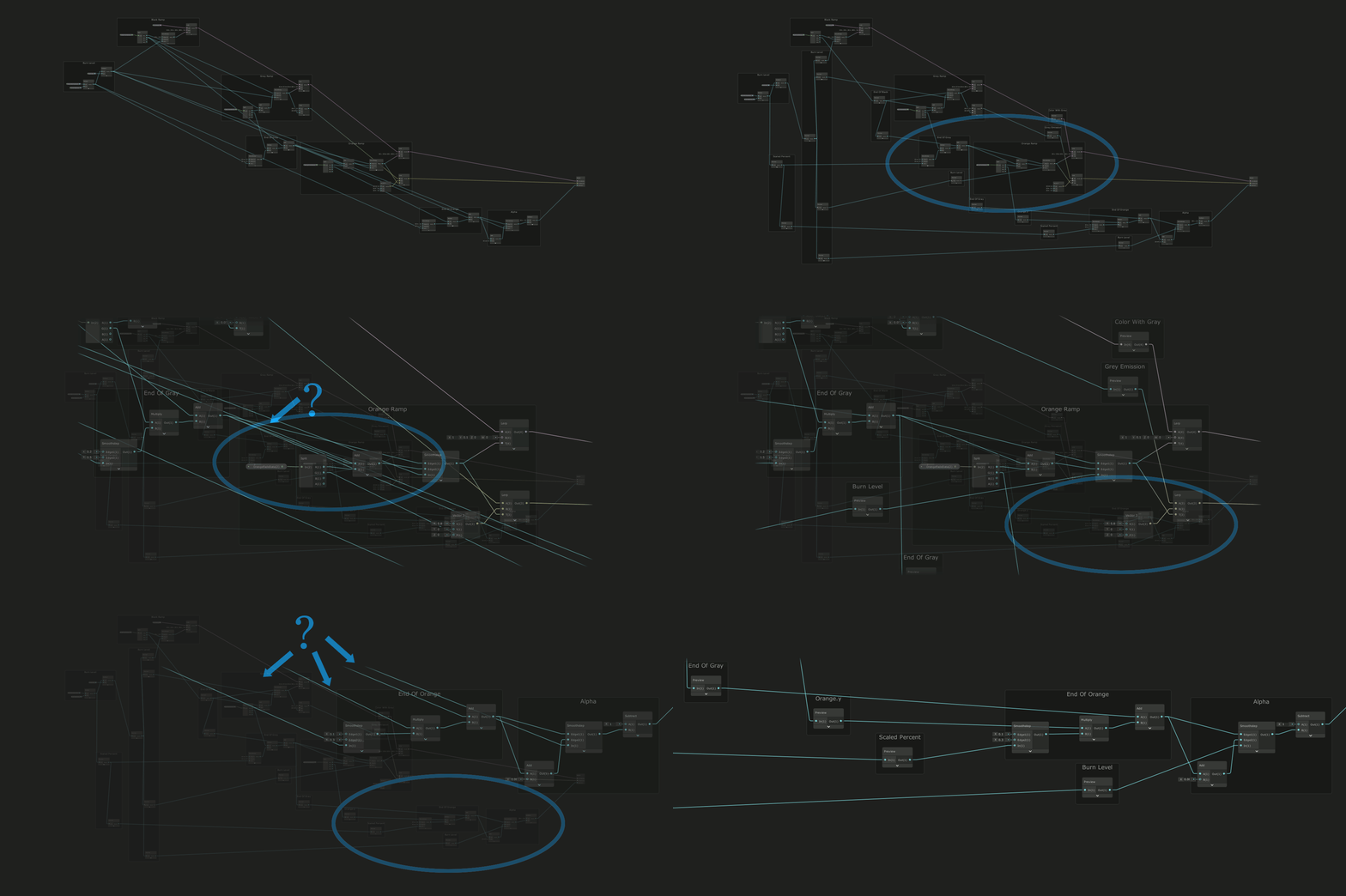
Feeding long wires through one or more preview nodes helps you reroute them as needed. By doing so, you can route wires around blocks of logic they are irrelevant to.
Source Labeling
Each preview node you use, can be put in a group (on its own or with others). Group names do not need to be unique in shader graph, so each node from the same source can be in a group with the same name. Putting one of these grouped preview nodes right next to the recipient of the signal gives you the chance to “name” your wires.
(click to see this gif at a larger, somewhat legible size)


How To
The steps to accomplish this are pretty simple. Anywhere you’ve got a long wire, create a preview node, drag one end of that long wire to the preview, and then wire up the gap. You can then put he node into a group to group and name it as you would a variable in code.
In some of my larger graphs, I might have a signal go through four or five preview nodes before arriving at its destination.
Do something. Make progress. Have fun.
1 comment on Tip: Preview Nodes in Shader Graph
Comments are closed.